dropad a8 android tablet
Dropad A8 Review – Android Tablet from Dealextreme

For those who want to buy a good Android tablet, the Dropad A8 is a good one (also know as A8i) and can be purchased at DealExtreme. It comes with Android 2.2, but it possible to update...

invisible ink pen with uv light
Invisible Ink Pen with UV Light

This invisible ink pen (sku.88) is a funny and useful product sold at Dealextreme (and some others stores). With it, you can write hidden messages on a paper and then, when you...

final fantasy buster sword cloud keychain
Final Fantasy Keychains Review (Mini Alloy Weapons from Dealextreme)

In this review we would like to talk about some Final Fantasy keychains (and some cell phone straps too) that we bought at Dealextreme. For those not familiar, Final Fantasy is...

fullmetal alchemist pocket watch
Fullmetal Alchemist Pocket Watch Review

This pocket watch (sku.45307) is specially for Fullmetal Alchemist fans (anime/manga). It is a replica of the silver pocket watch used by the character Edward Elric...

usb 3.0 flash drive 16gb adata
USB 3.0 Flash Drive 16GB Review (ADATA S102)

This USB 3.0 Flash Drive 16GB (sku.103478) is a genuine ADATA S102 device (according to Dealextreme) with read and write speeds of 64 Mbps and 30 Mbps respectively...

Showing posts with label android. Show all posts

Wamo Pro Bluetooth Controller Review

wamo pro bluetooth controller review ios android gamepad wamo pro bluetooth controller review ios android gamepad wamo pro bluetooth controller review ios android gamepad wamo pro bluetooth controller review ios android gamepad wamo pro bluetooth controller review ios android gamepad wamo pro bluetooth controller review ios android gamepad wamo pro bluetooth controller review ios android gamepad wamo pro bluetooth controller review ios android gamepad wamo pro bluetooth controller review ios android gamepad wamo pro bluetooth controller review ios android gamepad wamo pro bluetooth controller review ios android gamepad wamo pro bluetooth controller review ios android gamepad


A few days ago we wrote a IPEGA PG-9017 review, which helped some customer to know the device better. We recommend that you read it, because there may be some useful information (including comments) that you won't find in this review.

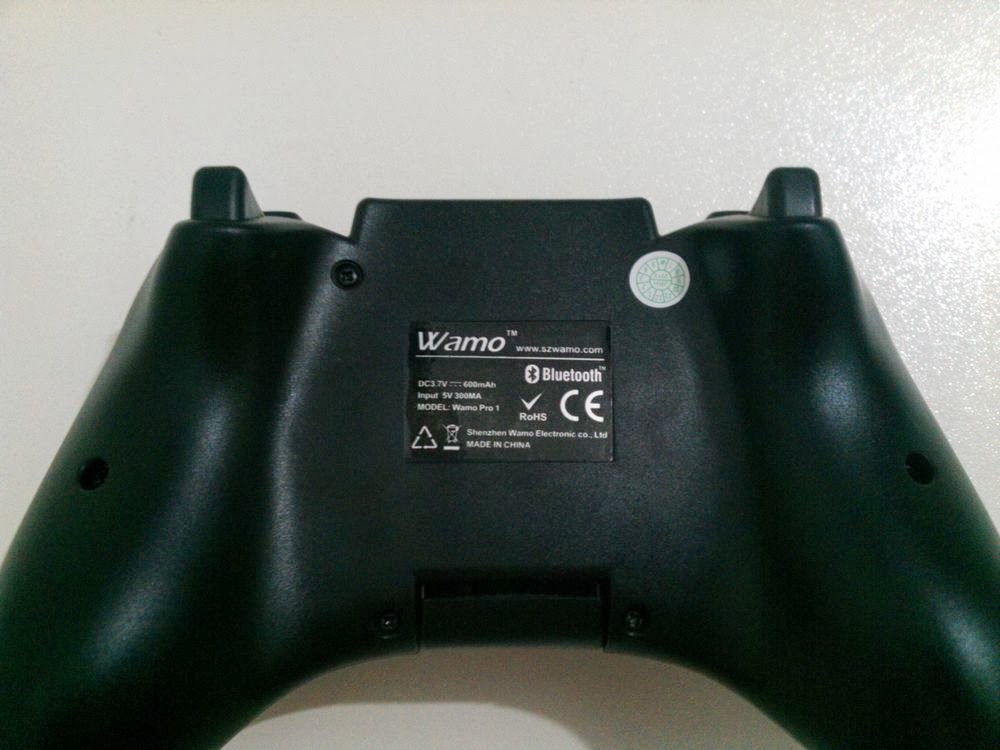
This time, we would like to review the Wamo Pro, another Bluetooth controller (Xbox 360 controller/Moga Pro comfortable ergonomic design) that works with Android, iOS and PC. This Bluetooth gamepad also has an extensible grip to support different smartphone sizes.

The Wamo Pro is manufactured by "SZ Wamo" and was bought on Dealextreme (sku.222605). The package came with the following items:

  • 1x Wamo Pro Bluetooth controller.
  • 1x ~148cm USB cable (used to recharge the Bluetooth gamepad or to update the Wamo Pro firmware).
  • 1x User manual (English and Chinese).


Features of the Wamo Pro

  • 4 modes of use: Gamepad, Keyboard, App and iOS (details later).
  • GREAT dpad, analogs and buttons quality.
  • Extensible grip (9cm).
  • Bluetooth 3.0 (it works with older Bluetooth devices too).
  • 6~8 meters of wireless range.
  • Compatible with iOS and Android smartphones and tablets.
  • Compatible with PC (tested on Windows 7).
  • 500mAh built-in lithium battery.
  • Buttons: A, B, X, Y, LB, LT, RB, RT, Select, Start, L3, R3 and HOME.
  • Pads: one D-Pad and two Analogs.
  • Material: plastic.

Check our YouTube channel for more Wamo Pro videos.


Will my smartphone fit in the Wamo Pro grip?

wamo pro extensible grip

The Wamo Pro grip (or clamp/holder) extension is limited, so you only will be able to attach smartphones whose width is around 9cm. If your smartphone width (smartphone + case thickness) is bigger than that (is there any?), then you will not be able to use this wireless Bluetooth controller, at least not using the grip.


How to use the Wamo Pro Bluetooth Controller

As with IPEGA PG-9017, this Android Bluetooth controller (also works on iOS) only requires a device with Bluetooth in order to work. However, in practice, there may be compatibility issues, so you would have to seek solutions on Internet forums or developers.

Below we will explain the usual way of use, which should be enough for most of the owners. After that, we will put some extra information regarding workarounds and apps that may help you in case of problems while connecting the Wamo Pro to your smartphone. So, to connect Wamo Pro to your Android smartphone do the following:

Step 1: Download and install "Wamo Ground" app from SZ Wamo's website (see note 1).
Step 2: Open "Wamo Ground" (see image 1).

wamo pro bluetooth controller wamo ground app

Step 3: Click on "My equipment" in the lower menu (see image 2 and note 2).

wamo pro bluetooth controller wamo ground app

Step 4: Hold down X button for "GAMEPAD MODE" (others buttons start others modes - details in the next section).
Step 5: Still holding the before button, hold down HOME button until lights start blinking.
Step 6: Release both buttons.
Step 7: Back to "Wamo Ground" app, click on the Bluetooth ON button in case Bluetooth is off (see image 3).

wamo pro bluetooth controller wamo ground app

Step 8: Click on "Add equipment" (see image 4).

wamo pro bluetooth controller wamo ground app

Step 9: App will list any equipment around, including WamoPro (with MAC address). Click on "Binding" button related to your WamoPro device (see image 5).

wamo pro bluetooth controller wamo ground app

Step 10: After successful connection, the first light will stay on (others modes have others light combination) and app will open a test screen so you can check if the Bluetooth gamepad are working properly (press buttons to see a response).
Step 11: Close "Wamo Ground" app by pressing BACK or HOME button.
Step 12: Open your prefered app/emulator and map buttons according as you prefer.

Case you have problems even following those steps, know that there are some useful apps that may help you. One of them is the custom Bluez IME with support to Wamo Pro (only in GAMEPAD mode for now). For us, it helped fix some connectivity problems with the HTC Desire HD (ROM ViperDHD v2.2.0). This custom Bluez IME also has support to IPEGA PG-9017 thanks to DiegoBaeza.

Others apps (for Android) that may help you are:

  • GameKeyboard: Useful to play touch-only games with physical gamepad (and other things).
  • Mupen64+ AE: Inside this Nintendo 64 emulator there is a diagnostic tool ("Settings" -> "Input" -> "Controller" -> "Controller diagnostics") to help you test gamepads.
  • Tincore Keymapper: Useful to play touch-only games with physical gamepad.
  • Wamo Key IME: Similar to GameKeyboard, but with less options (SZ Wamo's app).
  • MOGA VK: Case a game/app itsn't compatible with Wamo Pro (though compatible with keyboard) or you want to remap buttons.


Which MODE should I use?

For retro games that don't need analog stick, such as Super Nintendo (SNES), Nintendo (NES), Master System, Mega Drive (Genesis) and Arcade, KEYBOARD mode should be the simpler mode for you, but you can also use GAMEPAD or APP modes too since they have more buttons.

For retro games that use analog sticks, such as Nintendo 64 and Playstation (PSX), GAMEPAD or APP are recommended since both have 2 real analogs (emulator must be compatible with real analogs and Android 3.1+ are required).

For Android gaming, GAMEPAD or APP are recommended, but there may be cases that KEYBOARD mode may be useful (old games without current updates for instance).

For PC gaming, more specifically talking about retro gaming (emulators), GAMEPAD (see note 3) should be compatible with most of the emulators and has a lot of buttons. Switch to KEYBOARD mode in case your emulator is not compatible with POV Hat (Dpad won't work).

Now, case you want play real PC games, then search for X360CE to play games compatible with Xbox 360 controller and search for Xpadder to play games that aren't compatible.

Finally, for iOS games, SZ Wamo recommends iOS mode (button B), but they said that currenctly there are just a few games that support Wamo Pro device.

Mode Button
Gamepad X
Keyboard A
App Y
iOS B


Where can I buy this Wamo Pro?

This Wamo Pro Bluetooth controller is for sale at Dealextreme for about $30. You can also buy it on SZ Wamo's account in Taobao (Chinese website).


Note 1: SZ Wamo is planning to release an English version of "Wamo Ground" app. When they do, I will update this review.

Note 2: The English names used above was explain by a SZ Wamo employee during a chat. I don't know Chinese.

Note 3: In Windows 7, after finding WamoPro and before pairing, right-click on WamoPro, click on "Properties", click on "Services" tab and then enable "Drivers for keyboard, mice, etc (HID)" option.

Bluez IME with support to Wamo Pro (Android APK)

bluez ime icon

Update 18/08/2013: Added remap and profile function, just as in the other drivers.


In this post I will talk a little about the app Bluez IME and also about what I did to make it support Wamo Pro natively. Those who are having problems with the officials apps from SZ Wamo should read this post and try this custom app (it may not work too...).


After having some connectivity issues between my HTC Desire HD 4.0.4 (ViperDHD v2.2.0 ROM) and Wamo Pro Bluetooth controller, I decide to test alternative solutions. For my lucky, I found the source-code of the custom Bluez IME that supports IPEGA PG-9017 in joystick/gamepad mode (credits to DiegoBaeza). So, I got that source-code and added Wamo Pro driver to Bluez IME.

Unfortunally, I could only test this new Bluez IME in my HTC Desire HD, but I hope it helps anyone having problems to connect/play with Wamo Pro using official apps (although I didn't heard about anyone else).


How to connect Wamo Pro using Bluez IME

Before anything, you should download and install (Android only) the following apps:

If you have any previous Bluez IME already installed, you may need uninstall it before installing this new one to avoid conflicts.

Now, with the apps installed, do the following steps to connect Wamo Pro using Bluez IME:

Step 1: Open Bluez IME app.
Step 2: Click on "Activate Bluetooth" to turn it ON in case it is OFF (see image 1).

bluez ime support wamo pro bluetooth controller
Image 1

Step 3: Turn ON the Wamo Pro device (case it is OFF).
Step 4: Hold down X + HOME buttons in your Wamo Pro. Lights will start blinking (see note 1).
Step 5: Click on "Select device" and choose WamoPro (see image 2 and 3). If it is not in the list, click on "Scan..." to search and select it.

bluez ime support wamo pro bluetooth controller bluez ime support wamo pro bluetooth controller
Image 2 and 3

Step 6: Click on "Select device driver" and choose "Wamo Pro - X mode (HID)" (see image 4 and 5).

bluez ime support wamo pro bluetooth controller bluez ime support wamo pro bluetooth controller
Image 4 and 5

Step 7: Click on "Select IME" (remember which one is currenctly selected) and choose "Bluez IME" (see image 6 and 7). If it is not in the list, click on "Configure input methods", enable "Bluez IME" (see image 8), go back and select it now.

bluez ime support wamo pro bluetooth controller bluez ime support wamo pro bluetooth controller bluez ime support wamo pro bluetooth controller
Image 6, 7 and 8

After those steps the Bluez IME app will try to connect to Wamo Pro automatically. If success, a message saying "Connected to ..." will pop up, where "..." is the MAC address of your Wamo Pro. After that, you now are able to map buttons in your emulators and games (buttons should response as shown in the table on the next section).

In case you still have doubts on how to use Bluez IME, the video below showing the same steps described above.

After finish using Bluez IME, don't forget to turn it OFF and reselect your original IME (that one I told you to remember) in "Settings"->"Language & keyboard" menu.


Where can I buy this Wamo Pro?

The Wamo Pro Bluetooth controller is for sale at Dealextreme for about $30.


Technical Details

The Wamo Pro driver added to Bluez IME should only works with GAMEPAD mode (button X) and recognizes all buttons and pads according to Android API, which should output the following keycodes:

Button Constant Keycode
A KEYCODE_BUTTON_A 96
B KEYCODE_BUTTON_B 97
X KEYCODE_BUTTON_X 99
Y KEYCODE_BUTTON_Y 100
Select KEYCODE_BUTTON_SELECT 109
Start KEYCODE_BUTTON_START 108
L3 KEYCODE_BUTTON_THUMBL 106
R3 KEYCODE_BUTTON_THUMBR 107
LB KEYCODE_BUTTON_L1 102
LT KEYCODE_BUTTON_L2 104
RB KEYCODE_BUTTON_R1 103
RT KEYCODE_BUTTON_R2 105
Dpad: Down KEYCODE_DPAD_DOWN 20
Dpad: Left KEYCODE_DPAD_LEFT 21
Dpad: Right KEYCODE_DPAD_RIGHT 22
Dpad: Up KEYCODE_DPAD_UP 19
Left Analog: Left KEYCODE_A 29
Left Analog: Down KEYCODE_S 47
Left Analog: Right KEYCODE_D 32
Left Analog: Up KEYCODE_W 51
Right Analog: Left KEYCODE_4 11
Right Analog: Down KEYCODE_5 12
Right Analog: Right KEYCODE_6 13
Right Analog: Up KEYCODE_8 15

Note that, although analogs are show as digital output, Bluez IME also sends analogs signals too, so if one emulator/game is capable of interface with Bluez IME (like N64oid), then analog sticks will work as they should (non-digital). I don't know other apps that support Bluez IME interface, but I heard that GameKeyboard app also support analogs from Bluez IME.

Optionally, you can use the option "Configure key mapping" to map the buttons in a way different than the default (table above). This may be useful if a game (or emulator) doesn't support (or partially) Wamo Pro keycodes, but it supports keyboards or another gamepads (you can save custom mapping as profiles).

The APK was build with the following properties:

  • versionCode: 18.
  • versionName: 1.17.
  • debuggable: true.
  • testOnly: false.


Note 1: Make sure to hold X button first or else Wamo Pro may start without any mode selected (lights will blink slower).

IPEGA PG-9017 Wireless Bluetooth Controller Review (Android / iOS)

ipega bluetooth controller review ios android gamepad ipega bluetooth controller review ios android gamepad ipega bluetooth controller review ios android gamepad ipega bluetooth controller review ios android gamepad ipega bluetooth controller review ios android gamepad ipega bluetooth controller review ios android gamepad ipega bluetooth controller review ios android gamepad ipega bluetooth controller review ios android gamepad ipega bluetooth controller review ios android gamepad ipega bluetooth controller review ios android gamepad ipega bluetooth controller review ios android gamepad ipega bluetooth controller review ios android gamepad ipega bluetooth controller review ios android gamepad ipega bluetooth controller review ios android gamepad ipega bluetooth controller review ios android gamepad


In this review, we would like to talk about the IPEGA PG-9017, a Bluetooth controller specially designed for Android and iOS smartphones, such as iPhone, Samsung Galaxy S II, HTC One S, Samsung Galaxy Nexus, Motorola Droid Razr and many others. The reason for this is that the IPEGA PG-9017 has an extendable grip to support different smartphone sizes (below we talk about limits), so you can attach you smartphone, synchronize devices through Bluetooth and play your favorite games using a gamepad.

By the way, our IPEGA PG-9017 was bought on Dealextreme (sku.172963) and the package came with the following items:

  • 1x IPEGA PG-9017 Bluetooth controller.
  • 1x 85cm USB cable (used to recharge the Bluetooth gamepad).
  • 1x User manual (English and Chinese).


Features of the IPEGA PG-9017

  • 4 modes of use: iCade, Mouse, Keyboard and Joystick (details later).
  • Bluetooth 3.0 (it works with older Bluetooth devices too).
  • 6~8 meters of wireless range (useful if the grip will not be used).
  • Compatible with iOS and Android tablets and smartphones (it worked on Windows 7 too).
  • Built-in lithium battery.
  • Buttons: A, B, X, Y, L, R, Select, Start and HOME.
  • Pads: one D-Pad and two Analogs (true analogs when in JOYSTICK mode - see note 1).
  • Power saving mode when no use.
  • Material: plastic
  • Offered in two colors: black or white (links below).

Check our YouTube channel for more IPEGA PG-9017 videos.


Will my smartphone fit in the IPEGA PG-9017 grip?

ipega pg-9017 bluetooth controller grip

As you can see on the picture above, the IPEGA PG-9017 grip (or clamp/holder) extension is limited, so you only will be able to attach smartphones with width around 7.5cm. If your smartphone width (smartphone + case thickness) is bigger than that, then you will not be able to use this wireless Bluetooth controller. However, there are workarounds, like the guy in this video who managed to attach a Samsung Galaxy Note (8.3 cm of width) to the IPEGA PG-9017 using a plastic case mod. Also, there is the option to use this wireless Bluetooth controller without the grip, which is the option for those who have tablets (Android or iPad).


How to use the IPEGA PG-9017 Bluetooth Controller

In order to use this Android Bluetooth controller (also works on iOS), you only need to own a device with Bluetooth. However, not every device will pair with the IPEGA PG-9017 due to some Android bugs. For instance, this Bluetooth gamepad did not work with the HTC Desire HD running Android 2.3.3. However, after installing the Blackout v3.2 ICS ROM (Android 4.0.4), they worked fine. So, try to find information from other IPEGA PG-9017 owners on the Internet or buy it and try for yourself.

Getting back to the how-to, follow the steps below to pair and connect IPEGA PG-9017 to your Android smartphone (iPhone, iPad and iPod should be similar):

Step 1: Make sure the Bluetooth gamepad is OFF (SEARCH LED should be off). If on, hold HOME button for a few seconds to turn it off.
Step 2: Attach the smartphone in the Bluetooth gamepad grip.
Step 3: Go to Bluetooth settings of your smartphone and turn on Bluetooth.
Step 4: Now, depending on the mode you want turn it on, hold down A, B, X or Y (details in the next section).
Step 5: Still holding one of those four buttons (ABXY), hold down HOME button for a few seconds until the SEARCH LED start blinking, which means the Android controller is on and searching for devices to pair.
Step 6: Now, release the pressed buttons, get back to the smartphone screen and click on the option to scan for Bluetooth devices. That option may be hidden depending on Android version, so maybe the MENU button of your smartphone can help.
Step 7: After finding the IPEGA PG-9017, your smartphone will list a new device: "Bluetooth Gamepad".
Step 8: Touch this new item. A menu will popup asking for pair. Just confirm the pairing process and wait for conclusion.
Step 9: After successful pairing, wait again until your Android smartphone try to connect to Android gamepad automatically. If it fails, see note 2.
Step 10: After successful connecting (SEARCH LED will stay on and smartphone will mark this Android gamepad as connected), you are ready to try to use this Android gamepad with your game or emulator. If it fails connecting, see note 2.

The next part is to try to use IPEGA PG-9017 wireless Bluetooth controller with your game or emulator. Most of the retro emulators (for SNES, Mega Drive, Nintendo 64, Playstation, NES, Master System, Arcade, Neo Geo, etc.) allow you to configure a Bluetooth controller, at least in KEYBOARD mode. However, just a few Android games accept these Bluetooth controllers (currently), so you will have to try the modes until find something playable. By the way, make sure to unpair, turn off, turn on in other mode and pair again the IPEGA PG-9017 to avoid Bluetooth bugs. If Android do not unpair it in either way, reboot your smartphone.


Which MODE should I use?

As we mentioned, the IPEGA PG-9017 has 4 modes of use: Joystick, Keyboard, iCade and Mouse. You pick one of them when turning on this Bluetooth gamepad. Just hold down A, B, X or Y (according to the table below) and then hold HOME button for a few seconds (SEARCH LED will start blinking).

Each mode has some features, as shown in the table below, so try different ones when having problems while mapping button or testing games. As recommendation, start trying JOYSTICK mode. If no success, try the other modes. For Android users, there is an app on Google Play called GameKeyboard, who claims to allow users to play touch-only games with a gamepad (like this Bluetooth gamepad), but unfortunately we did not have a chance to test it (paid app).

To help you know the features of each mode, and which button (ABXY) to hold before turning on the wireless Bluetooth controller, we compiled the table below using the tool "Controller diagnostics" from Mupen64 Plus AE Free (v2.2.0), a Nintendo 64 emulator (go to "Settings" -> "Input" -> "Controller" -> "Controller diagnostics").

Mode Button Notes
Joystick X
  • true analogs
  • D-Pad and left analog are separated (different events)
Keyboard A
  • D-Pad and left analog are the same (no true analog)
  • no right analog
iCade Y
  • D-Pad and left analog are the same (no true analog)
  • no right analog
  • no START / SELECT (those two white buttons of a real iCade are not mapped)
Mouse B
  • L or R used as mouse click
  • right analog used to move mouse cursor
  • no left analog
  • no D-Pad
  • no ABXY buttons
  • no START / SELECT


Where can I buy this IPEGA PG-9017?

This IPEGA PG-9017 Bluetooth controller is for sale at Dealextreme for about $24. We bought the black version, but there is also a white version with the same features.


IPEGA PG-9017 compatibility list

Again, to help those looking for compatible games and emulators, we compiled the list below showing app/game name, version, notes, modes used, device and Android version. Obviously, it is a little list right now, but with your help it can get bigger and more accurate. Use the comments section below to share your experience with this Android Bluetooth controller.

Game/App (ver.) Notes Device
Mupen64 Plus AE (2.2.0) all OK (including true analogs) after mapping keys - JM Desire HD 4.0.4
(Blackout 3.2)
aFBA (1.6) all OK after mapping keys - KM *
Snes9x EX+ (1.5.10) all OK after mapping keys - KM *
GENPLUSDroid (1.9.3) all OK after mapping keys - JM and KM *
My Boy! Free (1.3.6)
GBA emulator
all OK after mapping keys - KM *
SuperGNES Lite (1.3.9) all OK after mapping keys - KM *
Sonic CD Lite (1.0.4) all OK - JM or KM *
Zenonia 4 (1.1.4) action button only in START - KM *
Zenonia 4 (1.1.4) ABXYLR, START and SELECT as action button - JM *
Avenger (1.04.00) only D-Pad works - JM or KM *
Assaulter (1.08.01) only D-Pad works - JM or KM *
Chrono & Cash Free (1.2.8) it seems ok - IM *
Recess Riot (1.2.1) holding buttons not handle properly - IM *
Mupen64 Plus AE (2.2.0) all OK (including true analogs) after mapping keys - JM Samsung Galaxy S II 4.0.3
Cordy (1.70) all OK - JM Desire HD 4.0.4
(ViperDHD 2.2.0)
Tiger Arcade (3.1.2) all OK after mapping keys and clearing unused buttons - KM *
N64oid (2.7) true analogs, but didn't recognize mapped D-Pad and right analog in game - JM *
N64oid (2.7) all OK with limitations (no true analogs, D-Pad and left analog are the same and no right analog) - KM *
FPse (0.11.87) no right analog, slow input handle in "Analog pad" and normal input handle in "Digital pad" - JM *
FPse (0.11.87) all ok with limitations (no true analogs, D-Pad and left analog are the same and no right analog) - KM *

Legends:

  • JM -> Joystick Mode.
  • KM -> Keyboard Mode.
  • IM -> iCade Mode.
  • MM -> Mouse Mode.
  • * -> Same device as before.

Note that graphic, performance or sound problems are not in the scope of this IPEGA PG-9017 review.


Problems

Now we will list some problems that we found while using this wireless Bluetooth controller:

  • Stiff D-Pad (not a big problem for most of the games).
  • Stiff analog sticks (maybe they will be more flexible with use).
  • Low visibility by developers (currently), but probably more games/apps will be compatible with IPEGA PG-9017 in future.
  • iCade mode does not have mapped those two white buttons of the real iCade.


IPEGA PG-9017 Information for Developers (for Android)

In order to help Android developers to add IPEGA PG-9017 support in their games and apps (show this table to your prefered developers), we compiled the table below with information regarding KeyEvent and MotionEvent classes (comment if something is missing).

If you are an Android developer and need a tester who owns the IPEGA PG-9017, feel free to contact us by email or comment below.

KeyCode

/

Button

Mode
  Keyboard Joystick iCade (Down/Up)
A 38(J) 189(Button 2) 49(U)/34(F)
B 39(K) 190(Button 3) 36(H)/46(R)
X 41(M) 191(Button 4) 38(J)/42(N)
Y 37(I) 190(Button 3) 53(Y)/48(T)
L Shoulder 45(Q) 192(Button 5) 37(I)/41(M)
R Shoulder 44(P) 193(Button 6) 39(K)/44(P)
Select 46(R) 196(Button 9) -
Start 53(Y) 197(Button 10) -
D-Pad Up 19(DPAD_UP) AXIS_HAT_Y(-) 51(W)/33(E)
D-Pad Down 20(DPAD_DOWN) AXIS_HAT_Y(+) 52(X)/54(Z)
D-Pad Left 21(DPAD_LEFT) AXIS_HAT_X(-) 29(A)/45(Q)
D-Pad Right 22(DPAD_RIGHT) AXIS_HAT_X(+) 32(D)/31(C)
L-Analog Up 19(DPAD_UP) AXIS_Y(-) 51(W)/33(E)
L-Analog Down 20(DPAD_DOWN) AXIS_Y(+) 52(X)/54(Z)
L-Analog Left 21(DPAD_LEFT) AXIS_X(-) 29(A)/45(Q)
L-Analog Right 22(DPAD_RIGHT) AXIS_X(+) 32(D)/31(C)
R-Analog Up - AXIS_RZ(-) -
R-Analog Down - AXIS_RZ(+) -
R-Analog Left - AXIS_Z(-) -
R-Analog Right - AXIS_Z(+) -


Note 1: For Android users, it is required that your device has Android 3.1 or higher to support analog sticks. Check our YouTube video showing the IPEGA PG-9017 being tested in all 4 modes.

Note 2: As we already mentioned, not every device will work with IPEGA PG-9017. If you are an unlucky whose smartphone failed to pair or connect to this Android gamepad, and you really want to use it, try to search for official or unofficial Android ROM's, as it worked for our HTC Desire HD running Android 2.3.3.

Freelander PH20 Review (cheap Android tablet)

freelander ph20 review android tablet freelander ph20 review android tablet freelander ph20 review android tablet freelander ph20 review android tablet freelander ph20 review android tablet freelander ph20 review android tablet freelander ph20 review android tablet freelander ph20 review android tablet freelander ph20 review android tablet freelander ph20 review android tablet freelander ph20 review android tablet freelander ph20 review android tablet freelander ph20 review android tablet freelander ph20 review android tablet freelander ph20 review android tablet freelander ph20 review android tablet freelander ph20 review android tablet freelander ph20 review android tablet freelander ph20 review android tablet freelander ph20 review android tablet freelander ph20 review android tablet freelander ph20 review android tablet


Presentation of the Freelander PH20

In this review, we would like to talk about the 7 inch Android tablet Freelander PH20 that we bought on Dealextreme (sku.166593). We will detail its specs and features later in this review, but for now you should know its price: about $67. Obviously, for this price it is not a top Android tablet, but it performs very well when playing videos or running Android games (continue reading this Freelander PH20 review for details), so consider it as a purchase option.
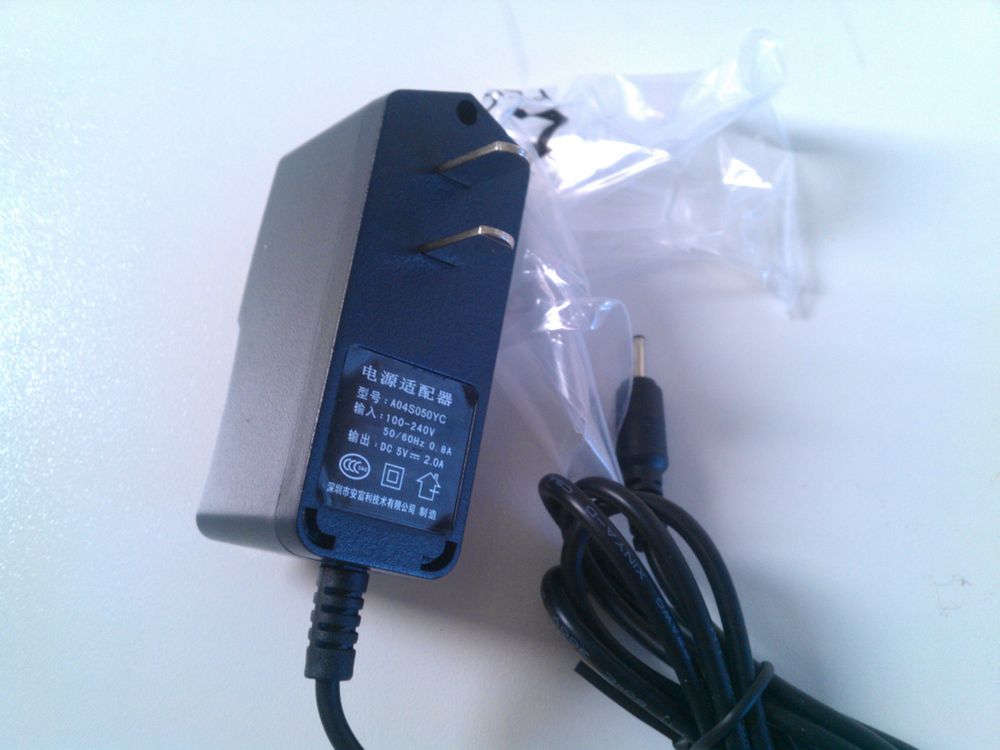
Besides the Freelander PH20 tablet (SXZ-PH20 - Link-create manufacturer), the package also include the following items:

  • 1x Power Supply DC 5V (to recharge).
  • 1x USB OTG adapter (micro B male to standard A female).
  • 1x USB cable (micro B male to standard A male).
  • 1x Start guide (English/Chinese).


Features of the Freelander PH20

Now, to help you know if this Android tablet is worth or not (considering the $67 price), let us describe its main features:

  • Android 4.0.4.
  • Single core AllWinner A13 SoC (CPU Cortex-A8 1.2GHz and GPU Mali-400).
  • 7 inch capacitive screen (5 points) 800x480 of resolution.
  • Memory 512MB DDR3 SDRAM.
  • WiFi 802.11 b/g/n.
  • Front camera 300KP.
  • G-Sensor.
  • 1x TF card slot (maximum 32GB micro SD).
  • 1x 3.5mm earphone jack.
  • 1x USB OTG (supports external USB flash drive, hard disk, keyboard, mouse and some other devices). (*)
  • Rooted (checked with the app "Root Checker Basic").
  • Google Play store already installed.
  • 60 OS languages (the list of languages is shown on the overview video below).
  • Built-in speaker (good sound quality).
  • Built-in microphone.
  • Supports external 3G dongles. (**)
  • Power/Sleep button.
  • Volume up/down buttons.
  • Battery capacity 2800 mAh (3.7V Li-ion) about 3 hours of duration with WiFi on and playing YouTube video.
  • 19.1cm x 11.6cm x 1.2cm of dimensions.
  • 450g of weight.

In our opinion, it is a lot of things for a cheap Android tablet. However, as expected due to its price, it does not have some features that may be important for some. In our opinion, the main missing features are:

  • No HDMI output.
  • No Bluetooth (so far neither with a Bluetooth dongle).
  • No GPS (maybe it is possible to use a USB GPS dongle).
  • No official firmwares so far, but keep monitoring this thread. (***)
  • No custom firmware (we did not find any so far).

Just to clarify things, watch our overview video below showing some features of the Freelander PH20 tablet:


Freelander PH20 - Video Playback Test

As always when reviewing devices capable of play videos, we made (and recorded) some tests to know the video playback performance of the Freelander PH20 tablet.

The tests were put different (codec/format) video files to play and see how well it goes. Note that the ability to play or not a particular codec/format/subtitle is related to software, so installing a proper Android video player app should solve any problem that you may encounter (we used the native video player app). Our tests was intended knowing how well the system can handle video files (1080p, 720p, MP4, etc.), so it is more related to CPU, GPU and firmware.

Check the results for yourself on the video below:

As you probably saw above, all video files played smoothly on the Freelander PH20 tablet.

The formats/codecs of the videos used on the tests was (listed in order of appearance):

  • AVI (AVC/H264) 1280x720 bitrate 4273 Kbps 30 fps.
  • M2TS (AVC/H264) 1920x1080 VBR maximum 25000 Kbps 23.976 fps.
  • MP4 (AVC/MPEG-4) 1920x816 VBR maximum 40000 Kbps 23.976 fps.
  • WMV (VC-1) 1280x720 bitrate 8000 Kbps 29.97 fps.


Freelander PH20 - Gaming Performance Test

Now the part that almost everyone likes: games. For these tests, we chose some free 2D and 3D games available on Google Play (we also used some pre-installed games) to see how well the Freelander PH20 can run them. You can check the gaming performance on the video below:

The games used on the video above are (it runs smoothly if there is no note):


Freelander PH20 - External Devices Test

Since this Android tablet has a USB OTG, you can plug in a USB flash drive (will be mounted at "/mnt/usbhost1"), as you probably saw on the video playback test above, and some other devices. The other ones that we tested was a mouse, a USB 3.0 flash drive (works as USB 2.0), a regular keyboard and a keyboard with a leather case for tablets. All of them worked fine.

We also tried to connect a Bluetooth dongle, just as we did with the Dropad A8, but no success. Maybe it will work in some future firmware (original or custom).


Freelander PH20 - Benchmark Test (AnTuTu, Quadrant and others)

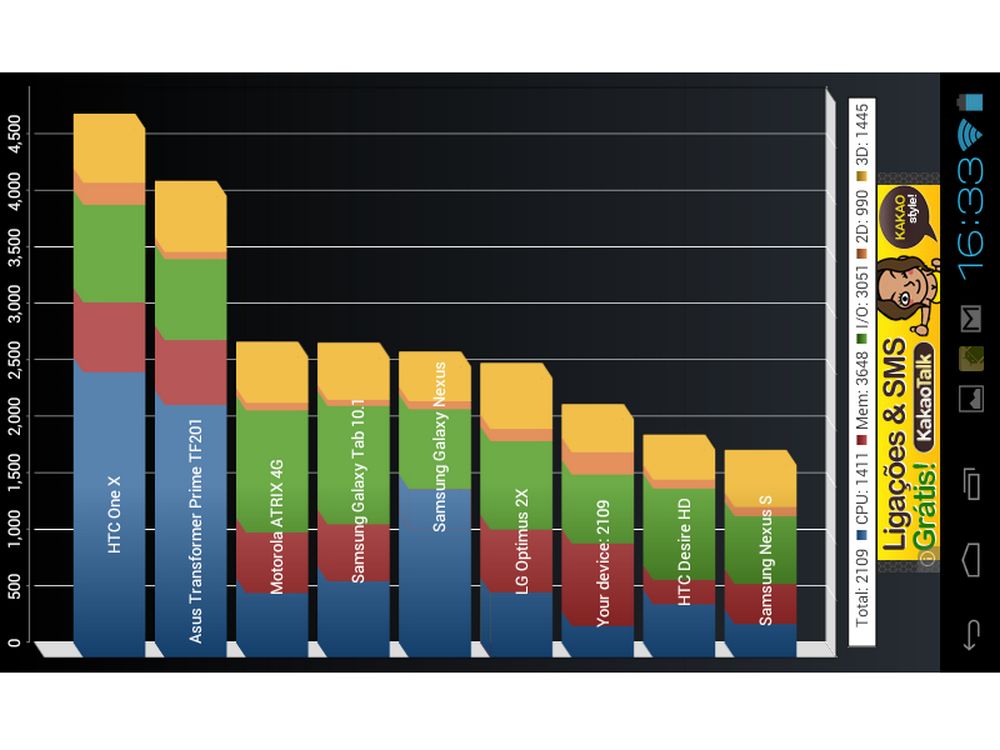
Finally, we tested the Freelander PH20 tablet using some popular Android benchmark apps to see how it scores (points or fps). You can check the Android benchmark apps and the results below or check the detailed benchmark tablet scores on the image gallery at the beginning of this Freelander PH20 review.

  • AnTuTu Benchmark (v3.2.1): 3772.
  • Quadrant Standard Edition (v2.1.1): 2109.
  • Vellamo Mobile Benchmark (v2.0.2): 538 in HTML5 and 187 in METAL.
  • Neocore (v1.9.41): 57.3 fps.
  • NenaMark2 (v2.4): 31.5 fps.


Where can I buy this Freelander PH20?

This cheap Android tablet is for sale at Dealextreme for about $67, more specifically in this link.


Note 1: There may be some incompatible devices.

Note 2: The list of compatible 3G dongles is in one image at the gallery above.

Note 3: It seems there are 3 (three) versions of this tablet: PH20W, PH20L and PH20. You can check the version on the back of the tablet (that code on the corner). We received the PH20L (check image gallery above), which currently do not have firmware updates.